
There are many ways to access the grades of students to look at the grades for each assignment, quiz, or exam.
Viewing The Gradebook For Enrolled Learners
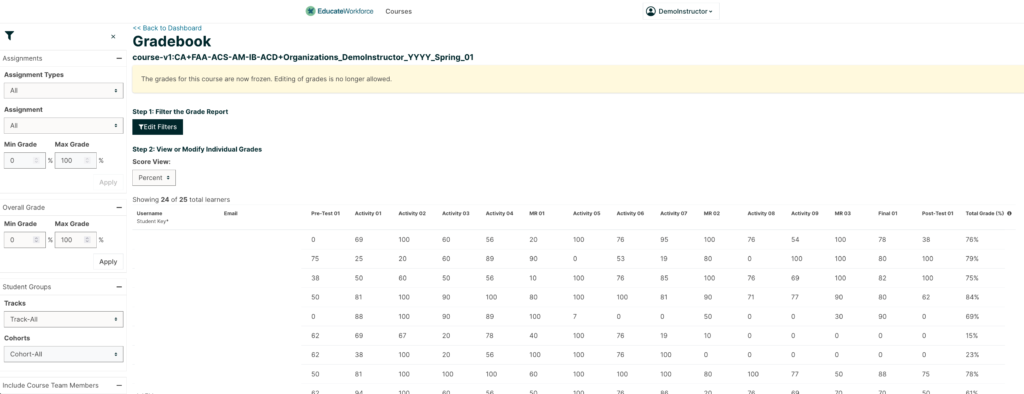
Go to the Instructor Dashboard. Under the Student Admin tab, pressing View Gradebook will bring up a page that will list all enrollees and their corresponding grades for each assignment.
To locate the lesson name title you can either hover over the name or find it’s mapping using the Instructor Dashboard > Data Download > Grade Configuration. For further information please visit “How to Identify Assignments in the Gradebook”.
Viewing A Specific Learner’s Grades And Progress
- Obtain the learner’s username or email address. Learners can use this article How can I Locate my Username and Email on my SkilRedi Account? to locate their username.
- Under the Student Admin tab, enter the username and press View Progress Page.
- A progress page report will appear with the specific learner’s grades and total grade.
Leave a Reply
You must be logged in to post a comment.